
Connect Claude
Save your Oanda practice key, add the Vertex Robots connector to Claude, and ask Claude for your first strategy.
Before you start
- A Vertex Robots account. Log in to see your dashboard.
- An Oanda practice account. Practice uses your broker's practice money, so start there.
- Claude, on any plan. Every Claude plan can add a custom connector (the Free plan allows one).
1 Save your practice key
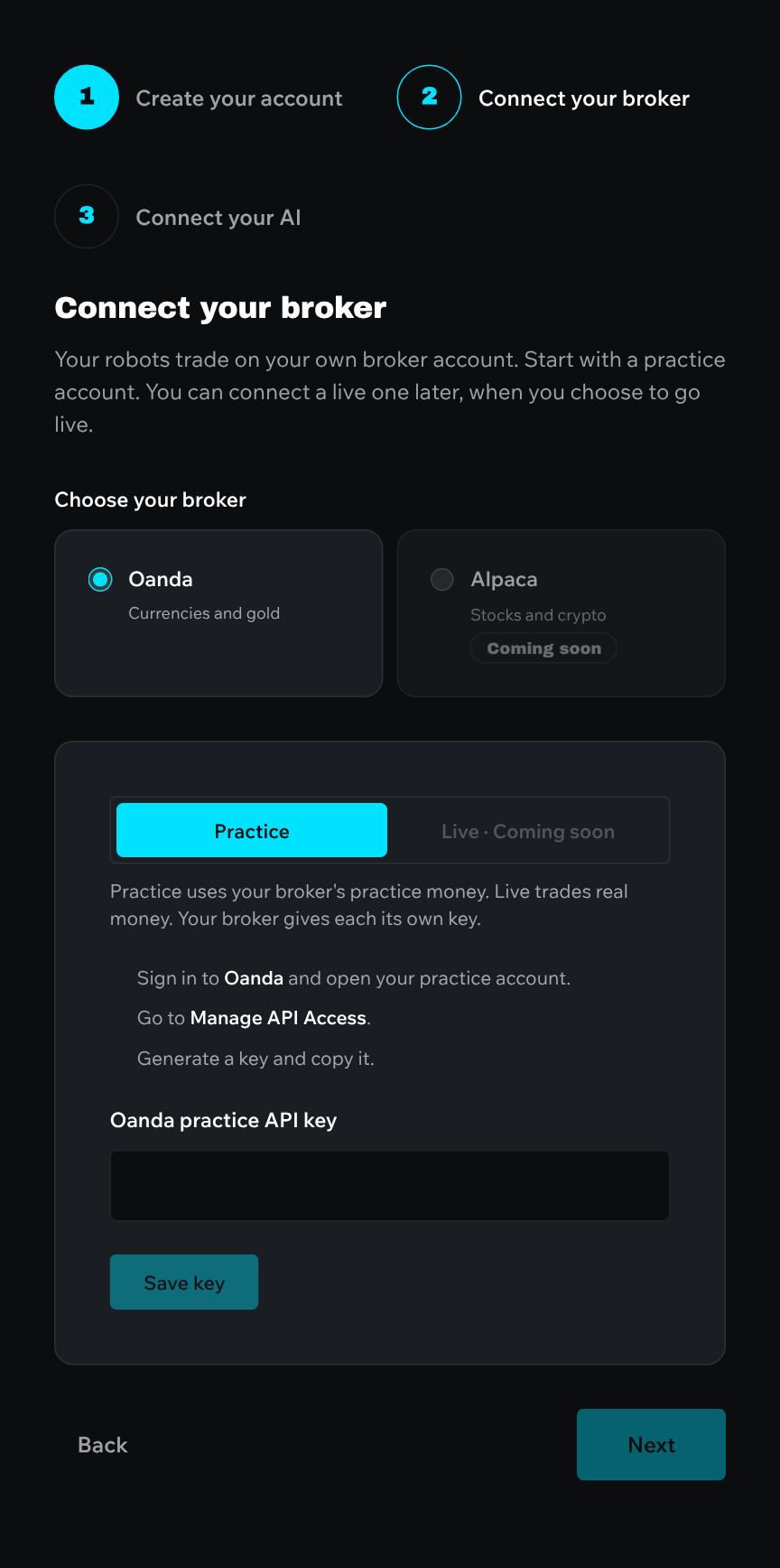
In Vertex Robots, open Connect your broker: choose Connect your broker on your dashboard's Finish setting up card. Oanda is already chosen, on Practice.
- Sign in to Oanda and open your practice account.
- Go to Manage API Access.
- Generate a key and copy it.
- Paste it into Oanda practice API key and choose Save key.
Vertex Robots checks the key with Oanda before saving it. Once it shows Key saved with the key's last four characters, choose Next.
2 Add the connector in Claude
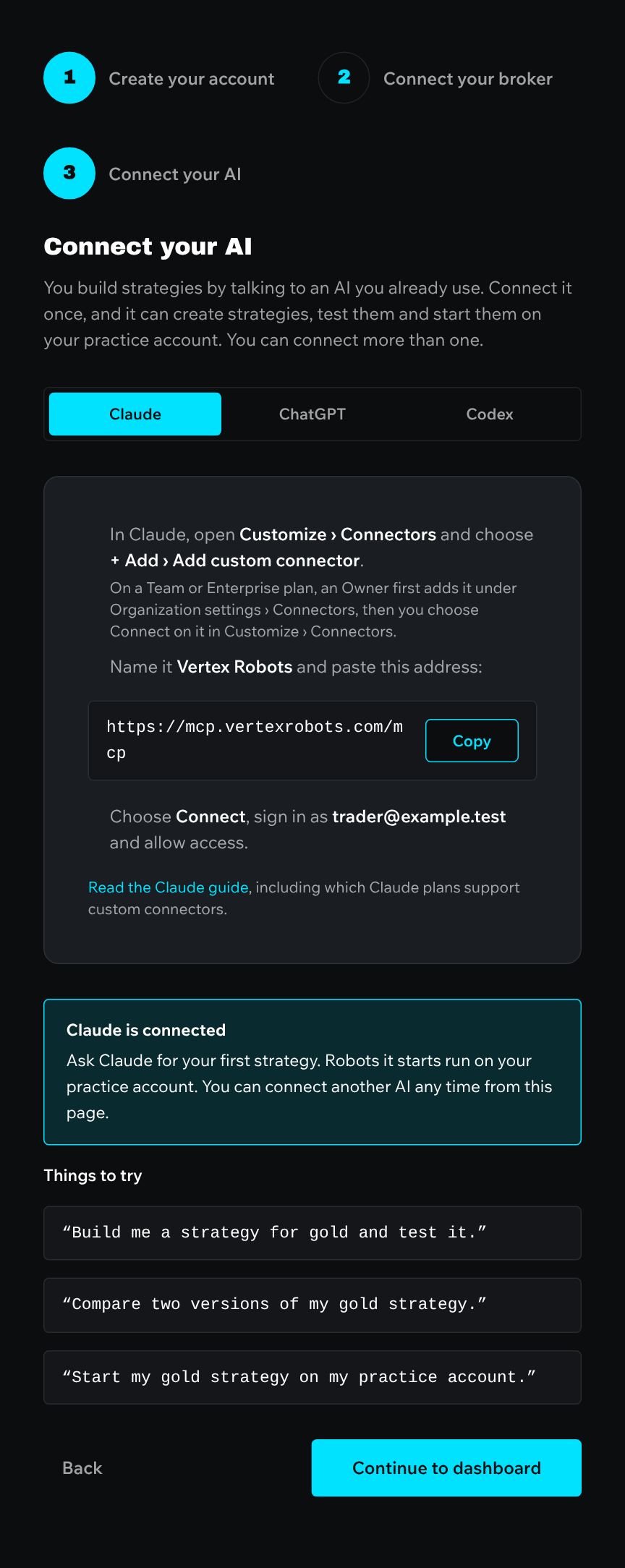
The next screen, Connect your AI, shows the connector's name and address. Leave it open while you add the connector in Claude.
On Free, Pro and Max
- In Claude, open Customize › Connectors.
- Choose + Add, then Add custom connector.
- Name it Vertex Robots and paste the address below.
- Choose Add.
On Team and Enterprise
An Owner of your Claude organisation adds the connector once for everyone:
- The Owner opens Organization settings › Connectors and chooses Add, then Custom, then Web.
- They name it Vertex Robots, paste the address below and add it.
- Each member then opens Customize › Connectors, finds Vertex Robots and chooses Connect.
Name Vertex Robots
https://mcp.vertexrobots.com/mcp
Claude's menus change from time to time. Anthropic's help page has the latest steps: Getting started with custom connectors.
3 Sign in and allow access
- In Claude, choose Connect on the Vertex Robots connector.
- Sign in with your Vertex Robots account: the email that Connect your AI shows.
- On Allow Claude to use your Vertex Robots account?, choose Allow. You go back to Claude.
Connect your AI updates by itself. When it says Claude is connected, you're set up.
4 Ask for your first strategy
Start a new chat in Claude and ask in your own words. Some things to try:
- “Build me a strategy for gold and test it.”
- “Compare two versions of my gold strategy.”
- “Start my gold strategy on my practice account.”
Robots Claude starts run on your practice account. You can follow them in Vertex Robots, and stop them there at any time.
If something goes wrong
The app keeps saying “Waiting for Claude”
Check you finished signing in and chose Allow, then choose Check again. Check the address in Claude is exactly https://mcp.vertexrobots.com/mcp, with nothing before or after it. On Team and Enterprise, check an Owner has added the connector and that you chose Connect on it.
Sign-in asks for a different account
The connector acts on the Vertex Robots account you sign in with. If the page names a different email, choose Sign out beside “Not you?” and sign in with the email Connect your AI shows, then choose Connect on the connector in Claude again.
The key isn't accepted
Check the key comes from your practice account, not a live one, and that you copied the whole key with nothing before or after it. If it still isn't accepted, generate a new key in Manage API Access and paste that.
Still stuck? Contact us.